Skip to content
pendlooq

How pendlooq works: one task, from a chat message to Done

You write one line in a chat. pendlooq turns it into a task in the right stream, asks what it needs, works in that stream’s folders, asks before running a command, and hands the result back for review. A week later, a question about the same topic lands in the same task. Here is that day, step by step, in the real app.

Updated

All screenshots come from the real pendlooq client running on a scripted mock model with demo data, so the assistant’s replies are canned. The interface, statuses and routing are what you get with a real model.

  1. Step 1

    A message in the chat becomes a task

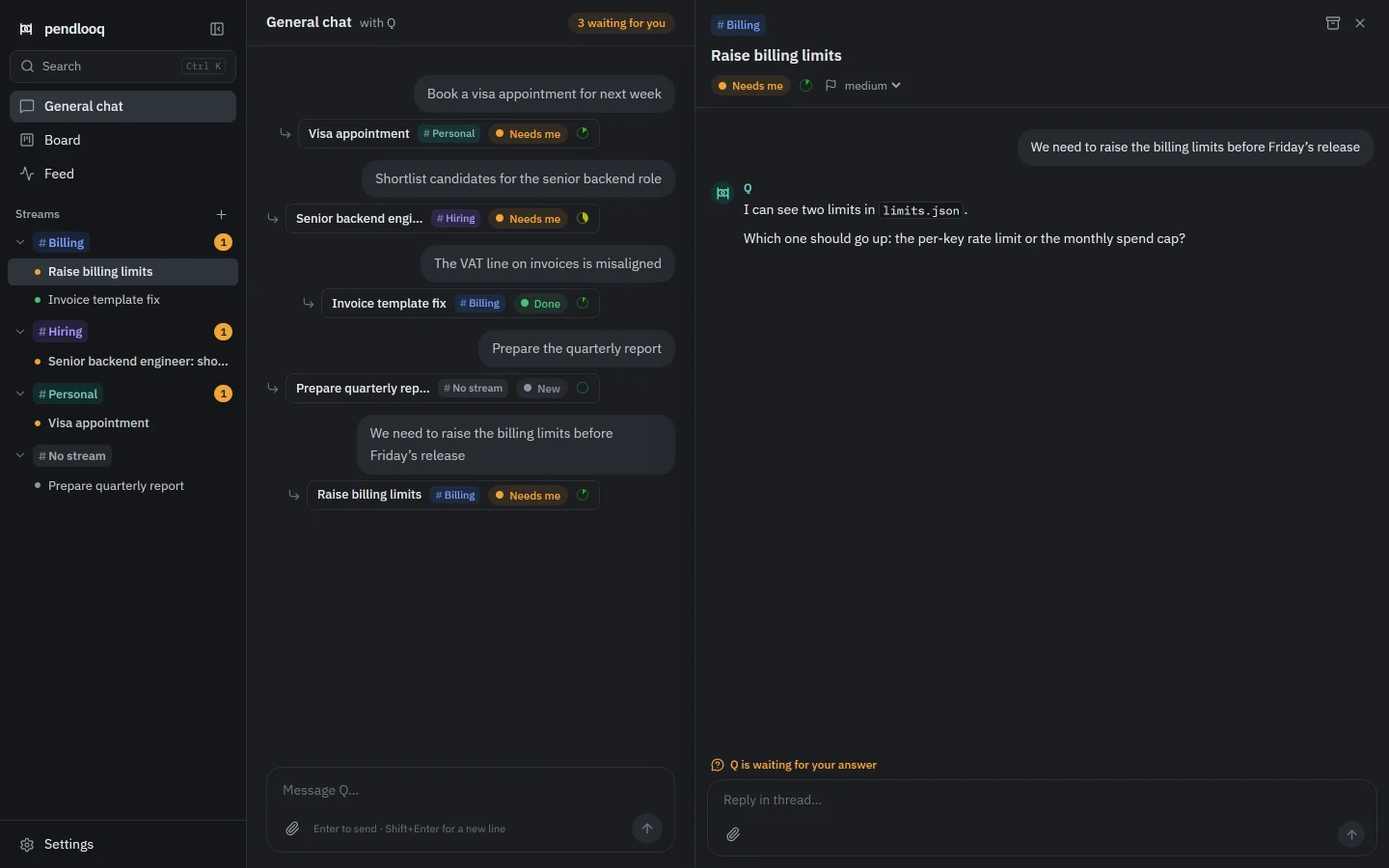
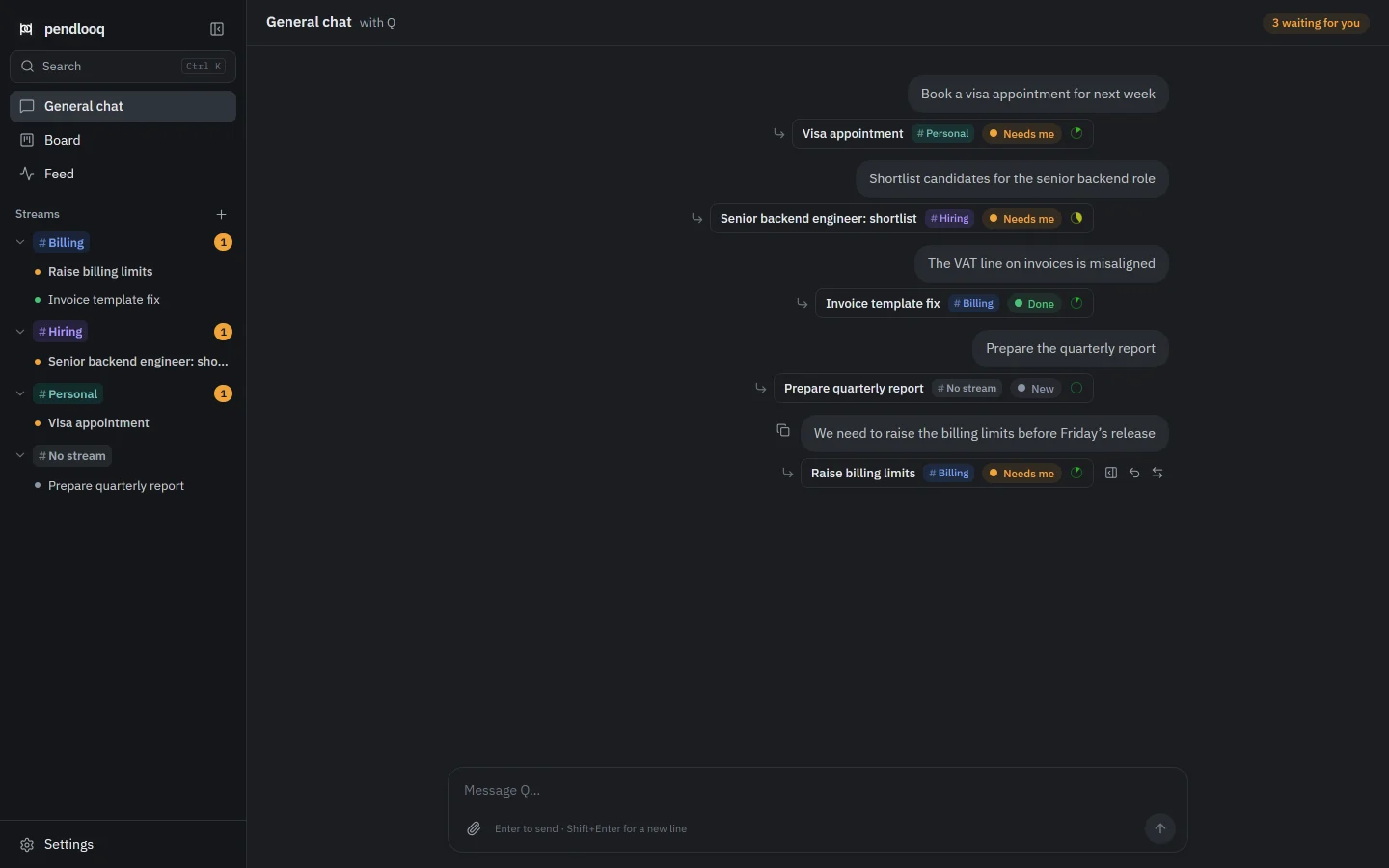
    You write in the general chat the way you would to a colleague: “We need to raise the billing limits before Friday’s release.”

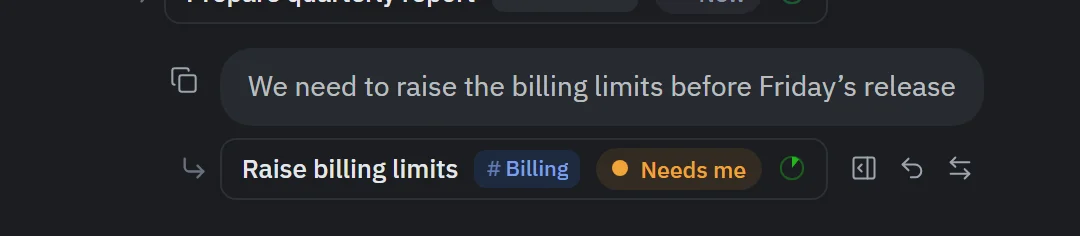
    A router reads the message and files it as a new task, “Raise billing limits”, in the Billing stream. A chip under the message shows the task, its stream and its status. Hover it to open the thread, Undo, or change the stream.

    The screenshot was taken a moment after routing, so the chip already shows the next status, Needs me.
    The chat is the tracker

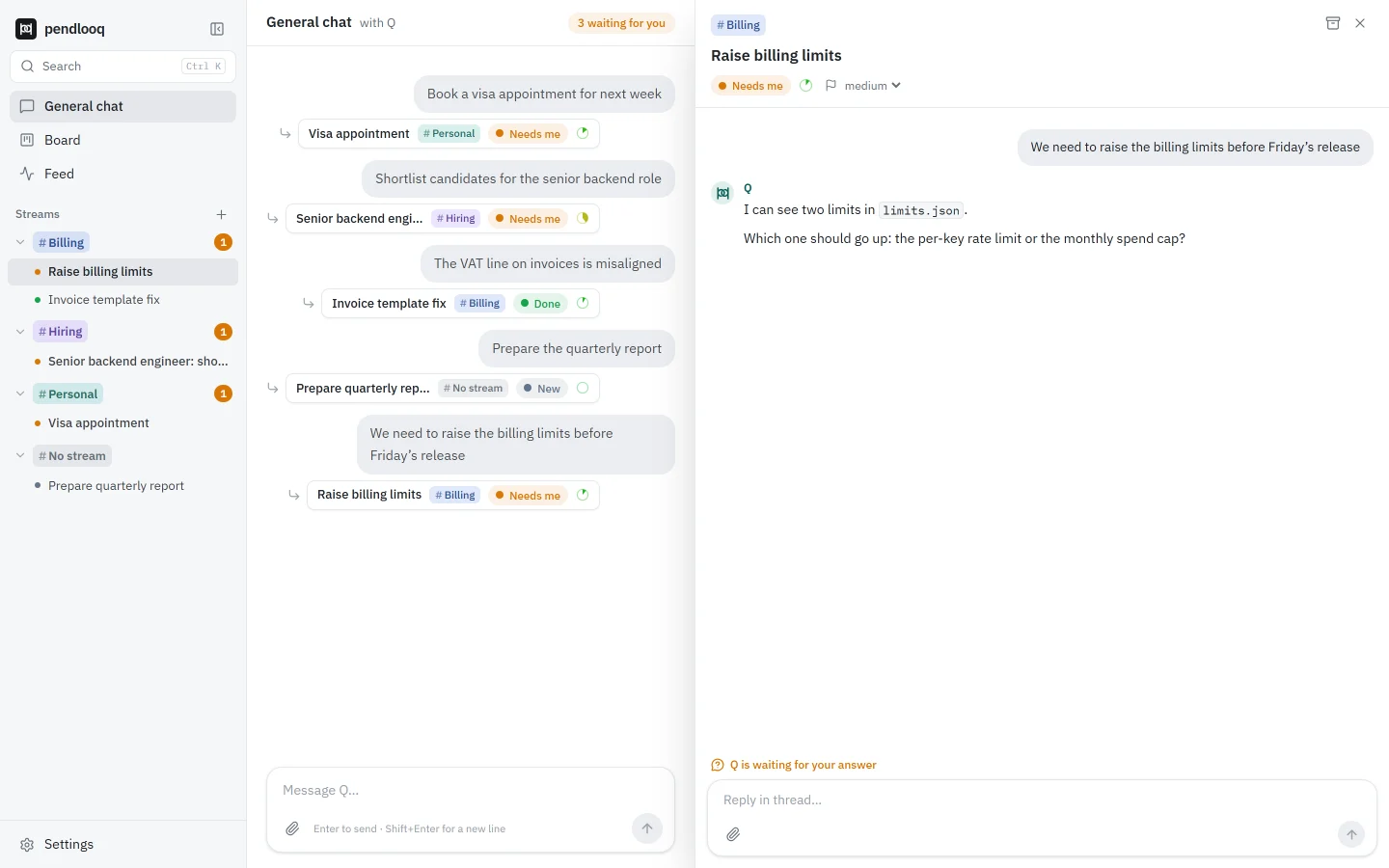
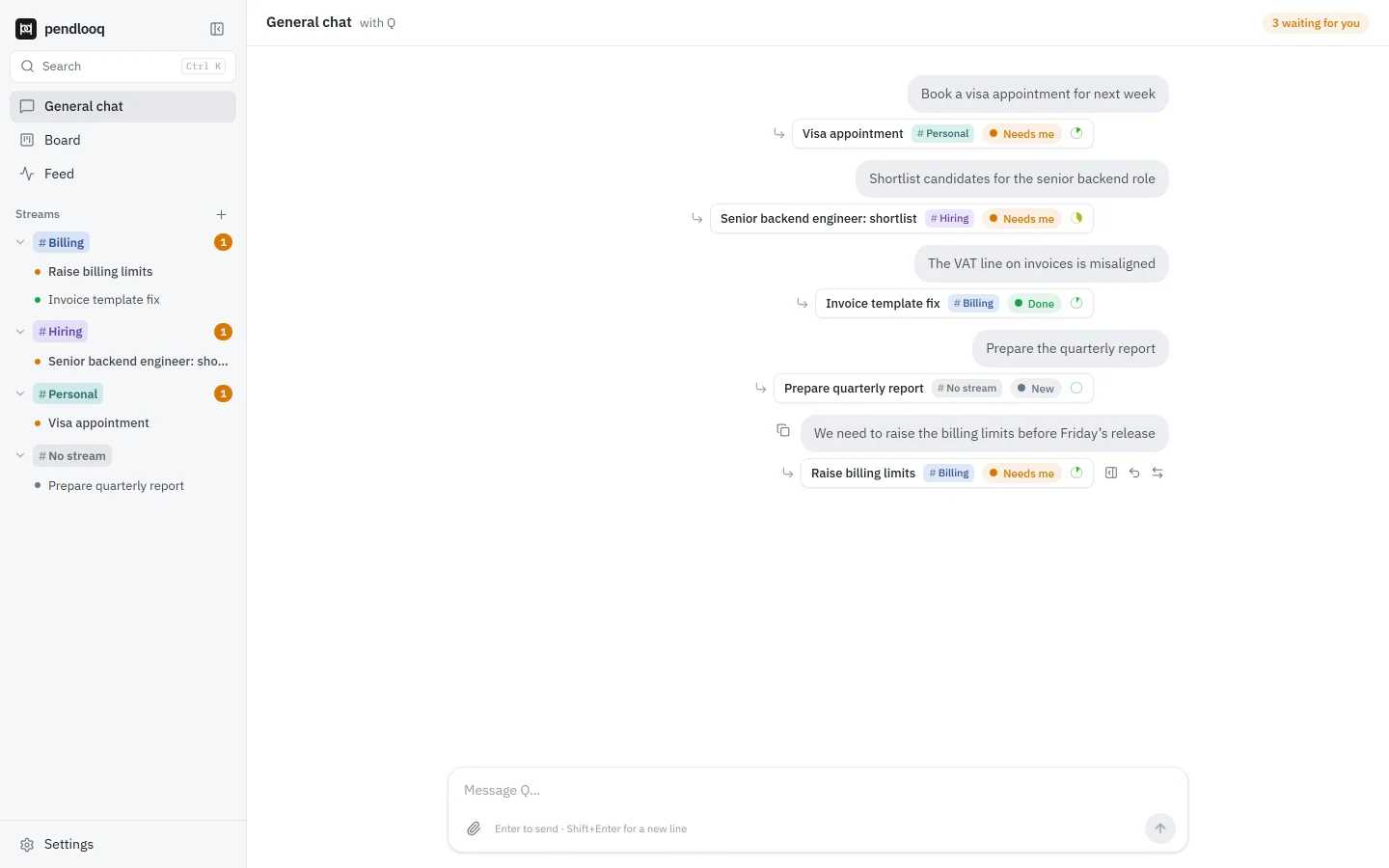
    pendlooq general chat. The message “We need to raise the billing limits before Friday’s release” has a task chip under it: Raise billing limits, stream Billing, status Needs me. The sidebar lists the streams Billing, Hiring, Personal and No stream with their tasks.pendlooq general chat. The message “We need to raise the billing limits before Friday’s release” has a task chip under it: Raise billing limits, stream Billing, status Needs me. The sidebar lists the streams Billing, Hiring, Personal and No stream with their tasks.
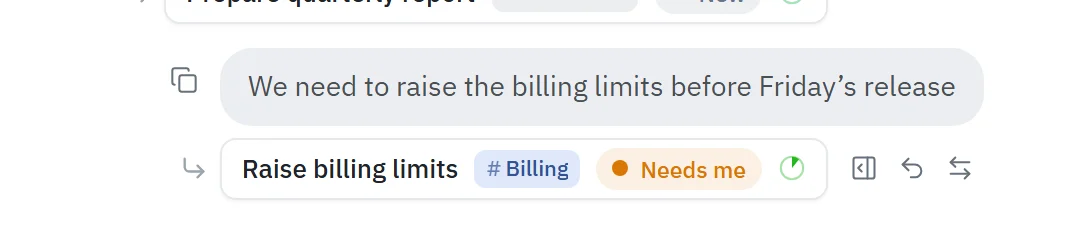
    Close-up of a routed message: the chip “Raise billing limits · # Billing · Needs me” with the quick actions Open thread, Undo and Change stream next to it.Close-up of a routed message: the chip “Raise billing limits · # Billing · Needs me” with the quick actions Open thread, Undo and Change stream next to it.
    The chip under the message: task, stream, status, and quick actions on hover.
  2. Step 2

    The assistant asks, the task waits for you

    The assistant starts on the task and needs one detail: which limit should go up? The question appears in the task thread, and the task moves to Needs me.

    The stream in the sidebar gets an amber badge and the header counts what is waiting for you, so you see whose turn it is without opening anything.

    The thread “Raise billing limits” open beside the chat, status Needs me. The assistant Q asks which limit should go up, the per-key rate limit or the monthly spend cap, and the reply box says “Q is waiting for your answer”.The thread “Raise billing limits” open beside the chat, status Needs me. The assistant Q asks which limit should go up, the per-key rate limit or the monthly spend cap, and the reply box says “Q is waiting for your answer”.
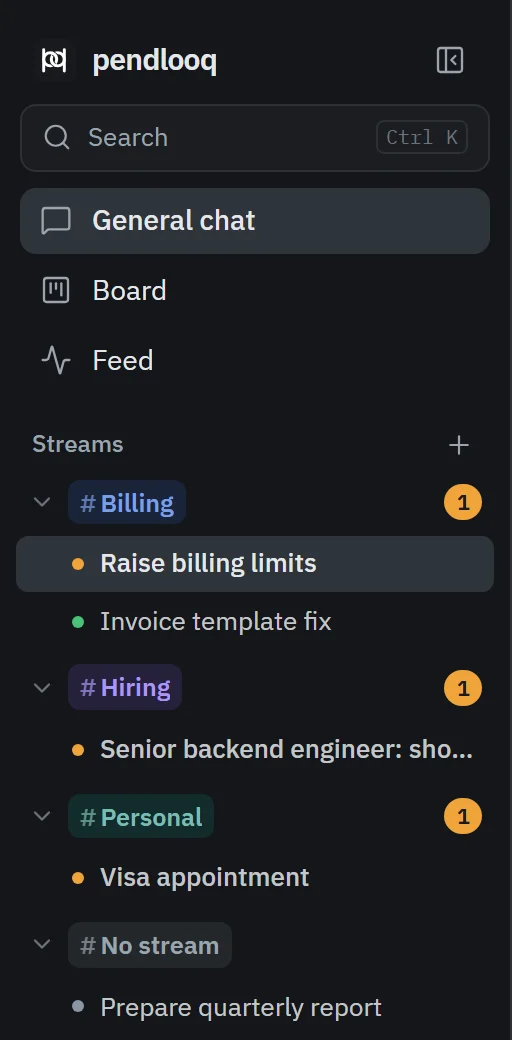
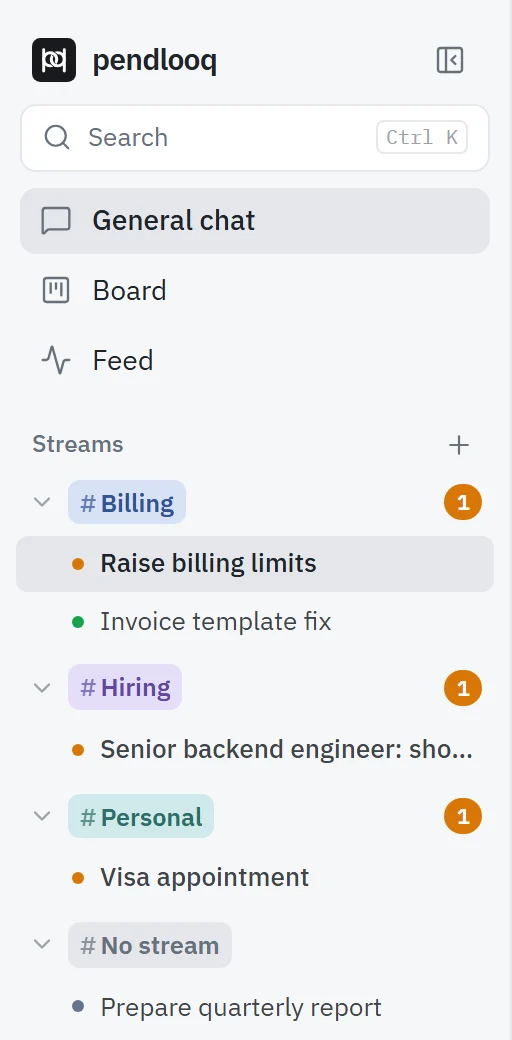
    Sidebar close-up: the streams Billing, Hiring and Personal each carry an amber badge with the number of tasks waiting for you; No stream holds a one-off task.Sidebar close-up: the streams Billing, Hiring and Personal each carry an amber badge with the number of tasks waiting for you; No stream holds a one-off task.
    Amber badges per stream: tasks in Needs me or Review.
  3. Step 3

    You answer, the work continues

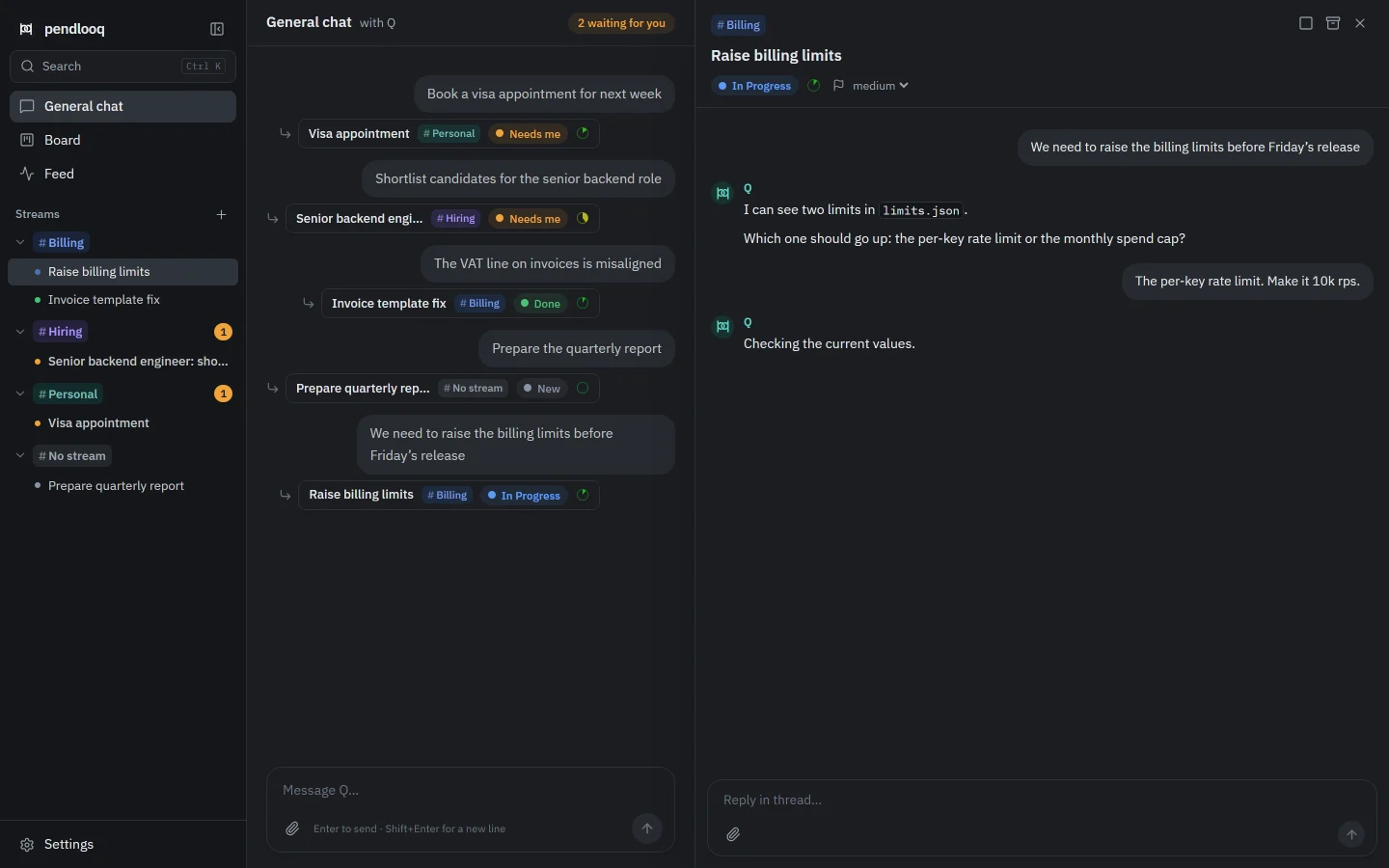
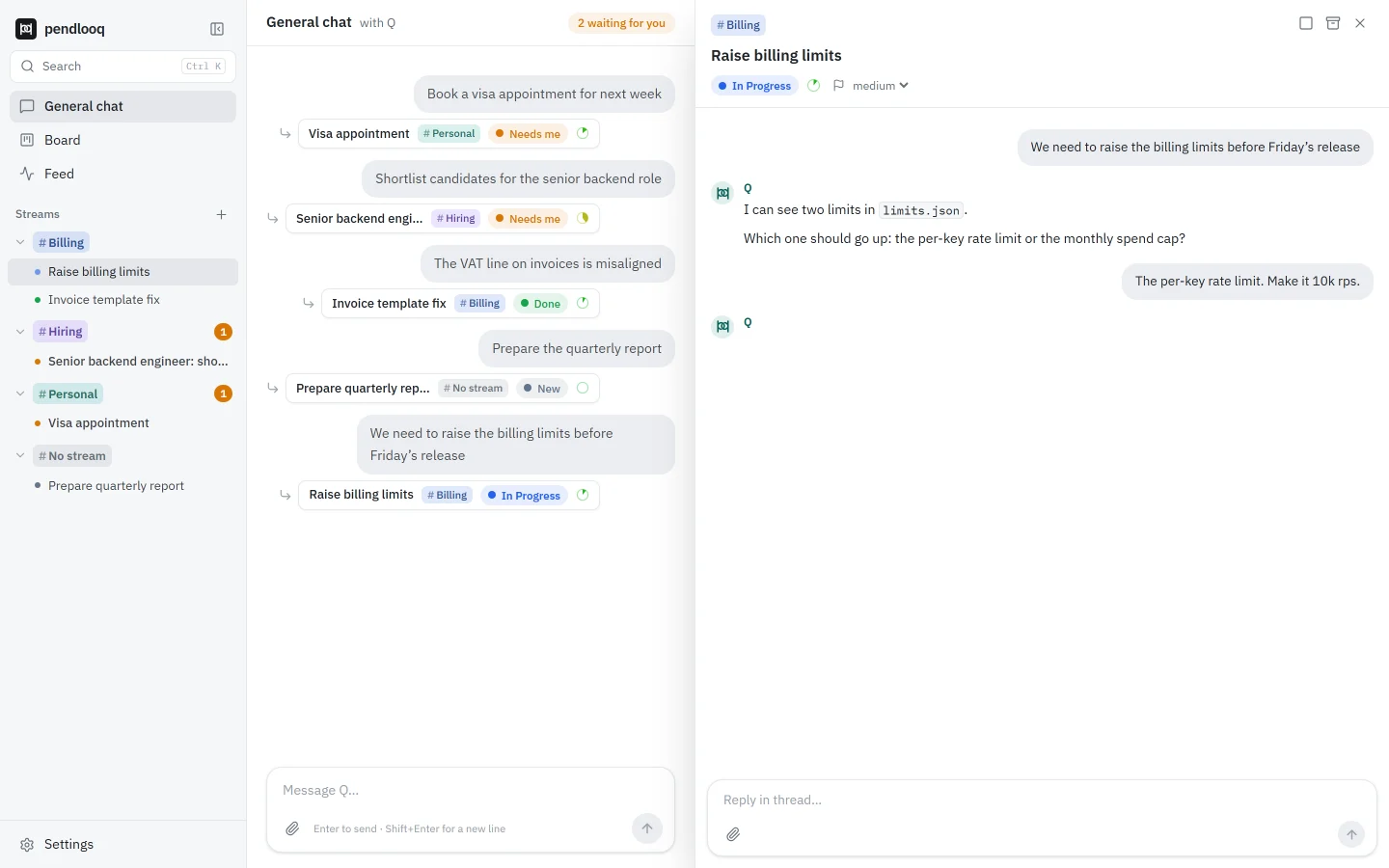
    You reply in the thread: “The per-key rate limit. Make it 10k rps.” The task goes back to In Progress and the assistant carries on, working with the files in the stream’s folder.

    Tasks in one stream run one at a time by default; others wait in a queue ordered by priority.

    The thread after the reply “The per-key rate limit. Make it 10k rps.”: the status is In Progress and the assistant says it is checking the current values.The thread after the reply “The per-key rate limit. Make it 10k rps.”: the status is In Progress and the assistant says it is checking the current values.
    Back In Progress after your answer.
  4. Step 4

    A command needs your permission

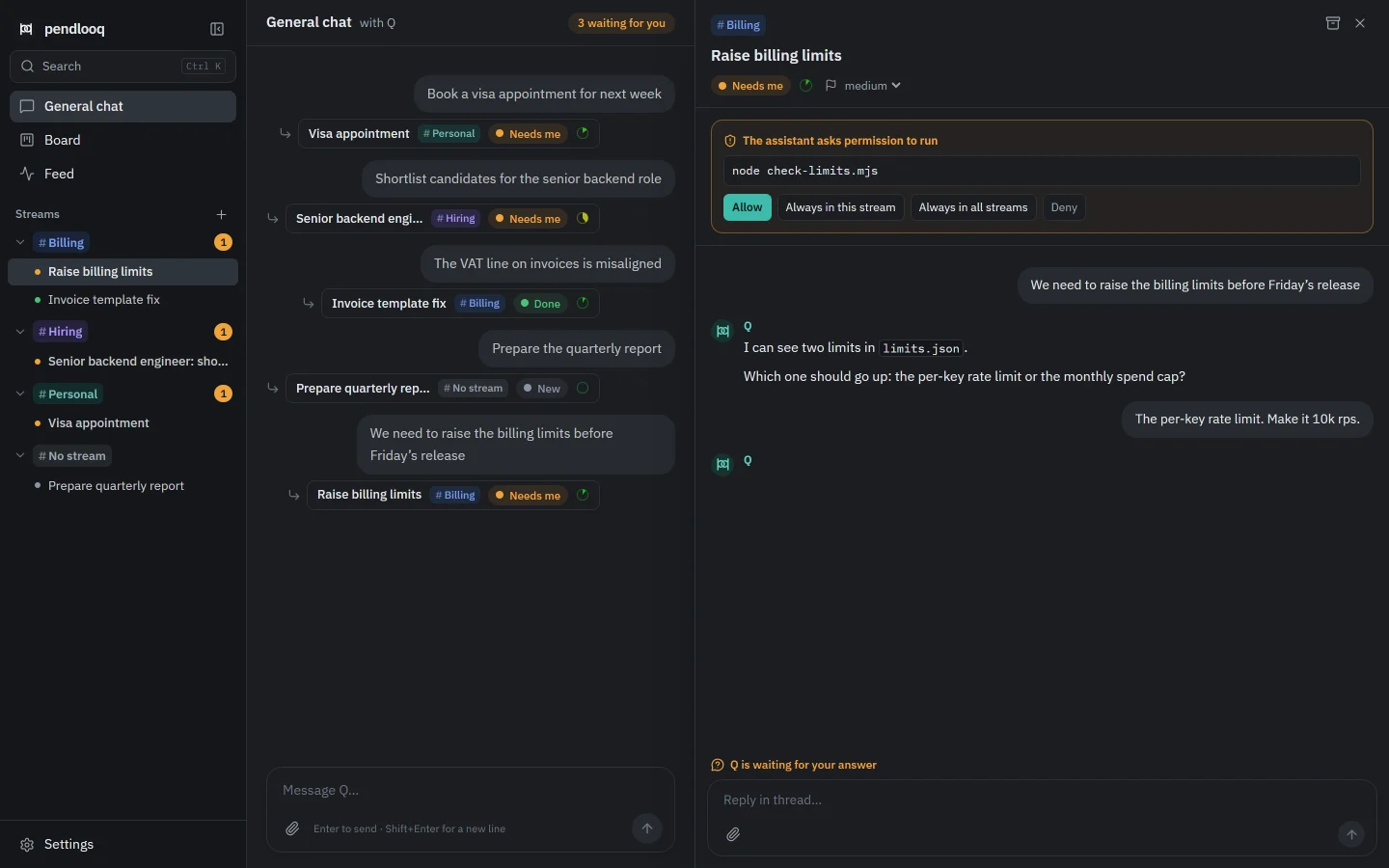
    To check the current limits, the assistant wants to run a command in the project folder. The stream is set to ask before every command, so a card shows the exact command with four choices: Allow, Always in this stream, Always in all streams, or Deny.

    Either “Always” choice writes a rule, so the same command will not ask again. While the card waits, the task is in Needs me.

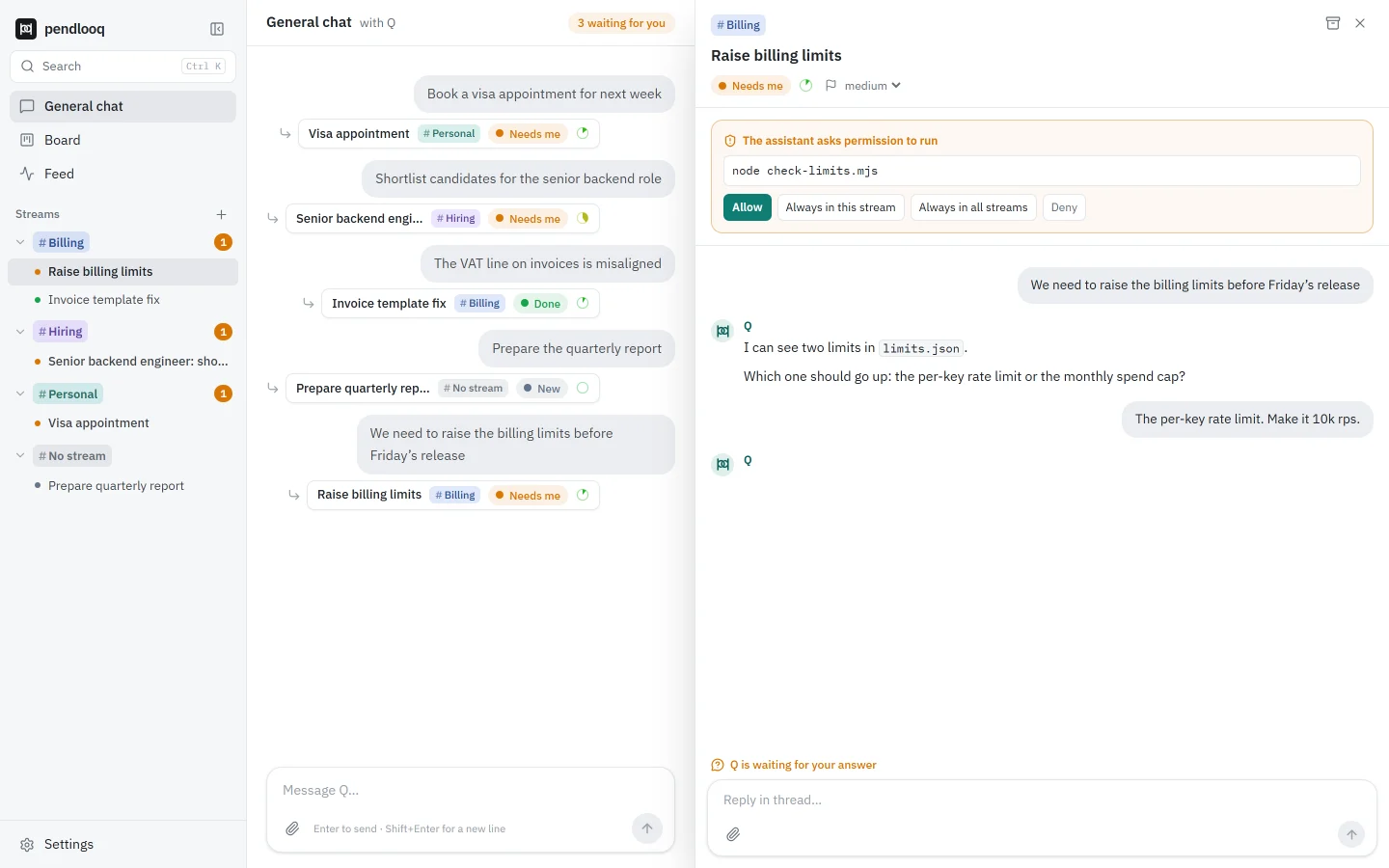
    An approval card at the top of the thread: “The assistant asks permission to run node check-limits.mjs”, with the buttons Allow, Always in this stream, Always in all streams and Deny. The task waits in Needs me.An approval card at the top of the thread: “The assistant asks permission to run node check-limits.mjs”, with the buttons Allow, Always in this stream, Always in all streams and Deny. The task waits in Needs me.
    Approval card close-up: the exact command node check-limits.mjs and the buttons Allow, Always in this stream, Always in all streams and Deny.Approval card close-up: the exact command node check-limits.mjs and the buttons Allow, Always in this stream, Always in all streams and Deny.
    The approval card shows the exact command before anything runs.
  5. Step 5

    The result goes to Review, then Done

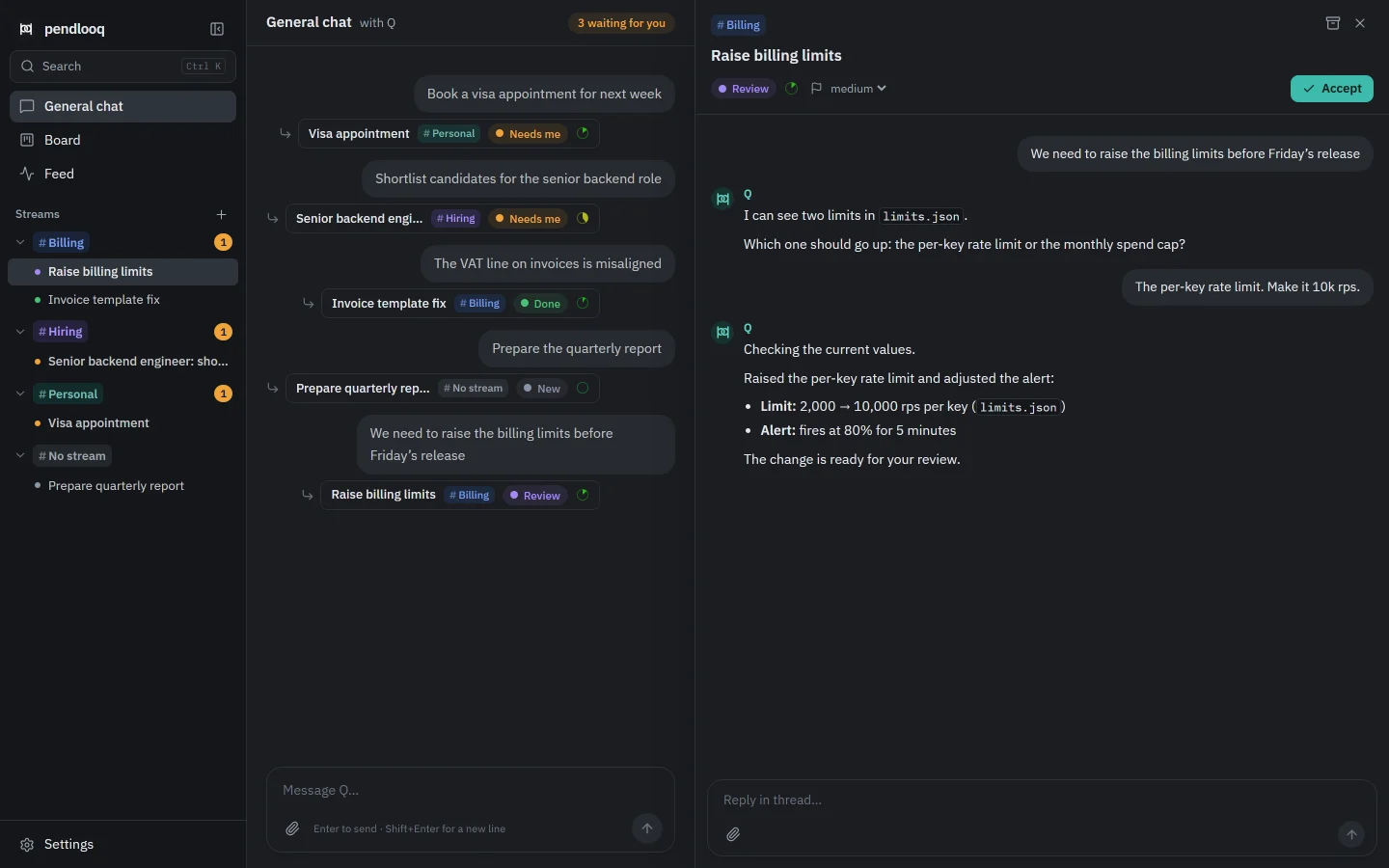
    The assistant raises the limit, adjusts the alert and submits the result. The task moves to Review with an Accept button. Accept it and the task is Done; reply in the thread instead and it goes back to work.

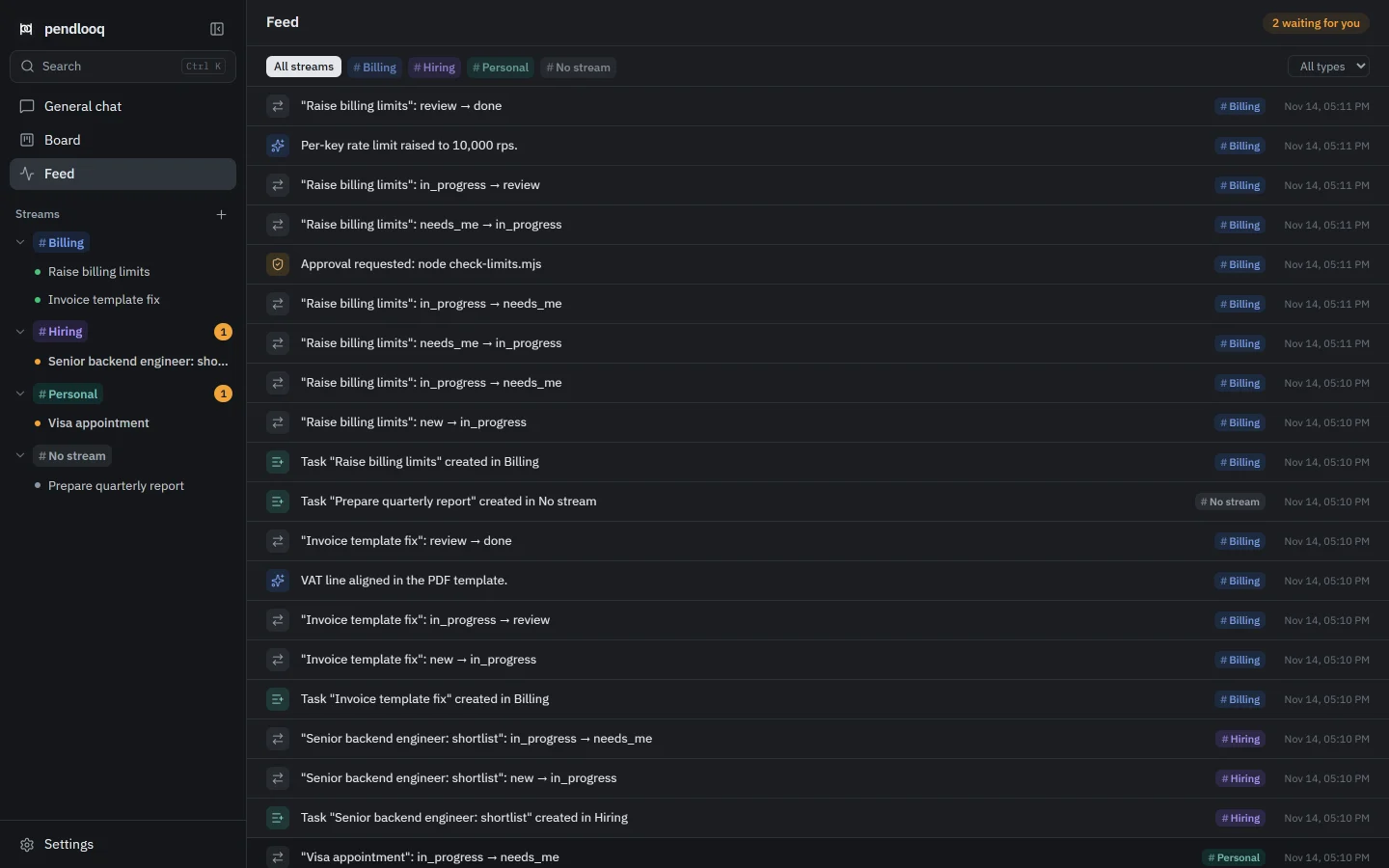
    The Feed records every step in one line each: status changes, the approval request and the result. If you do not react, a task in Review is accepted automatically after 3 days, and Done tasks are archived 3 days later (both configurable).

    What every status means

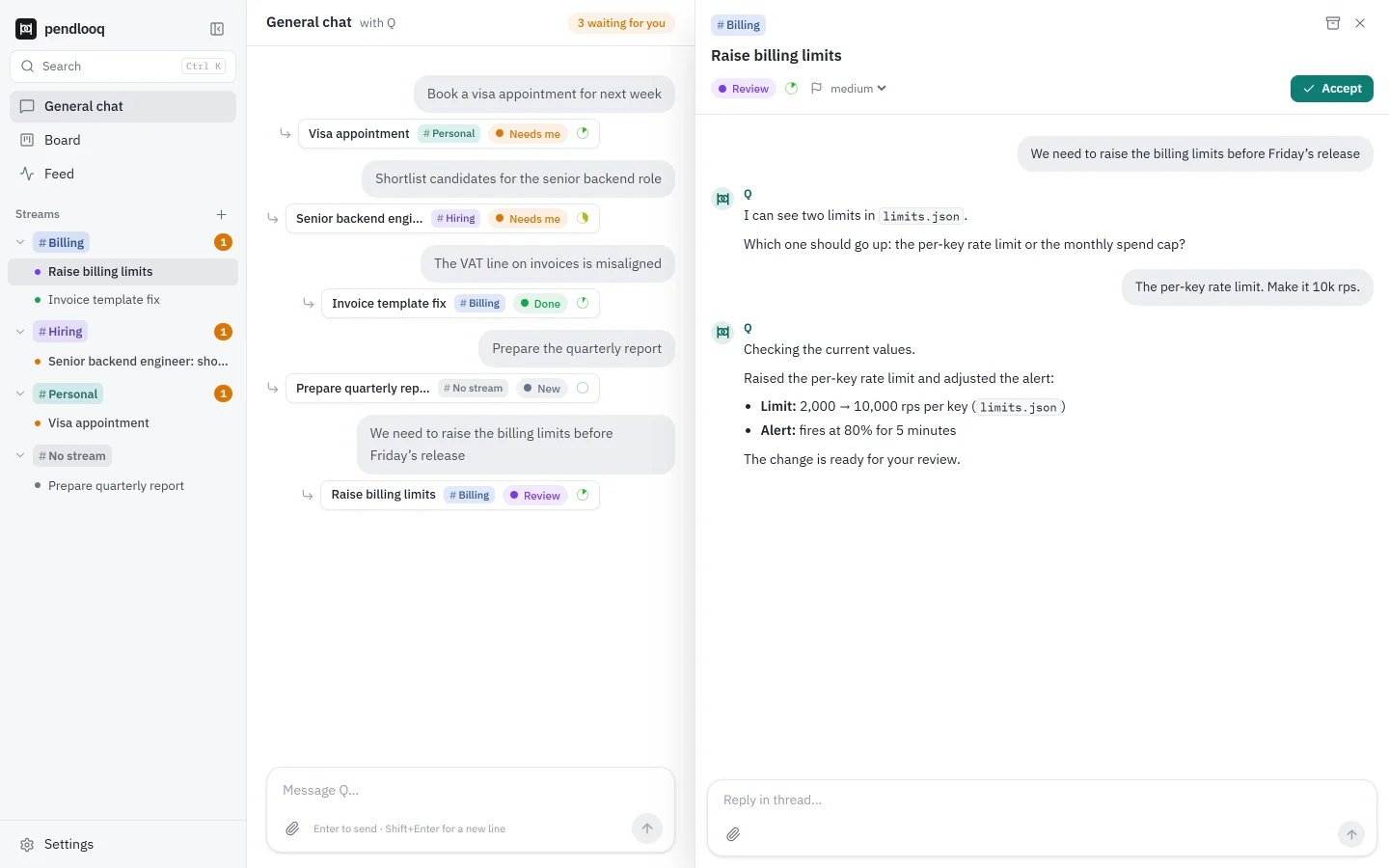
    The task in Review: the assistant lists the change (per-key limit 2,000 → 10,000 rps in limits.json, alert at 80% for 5 minutes) and the thread header shows an Accept button.The task in Review: the assistant lists the change (per-key limit 2,000 → 10,000 rps in limits.json, alert at 80% for 5 minutes) and the thread header shows an Accept button.
    Review with an Accept button in the thread header.
  6. Step 6

    The Feed shows what was done

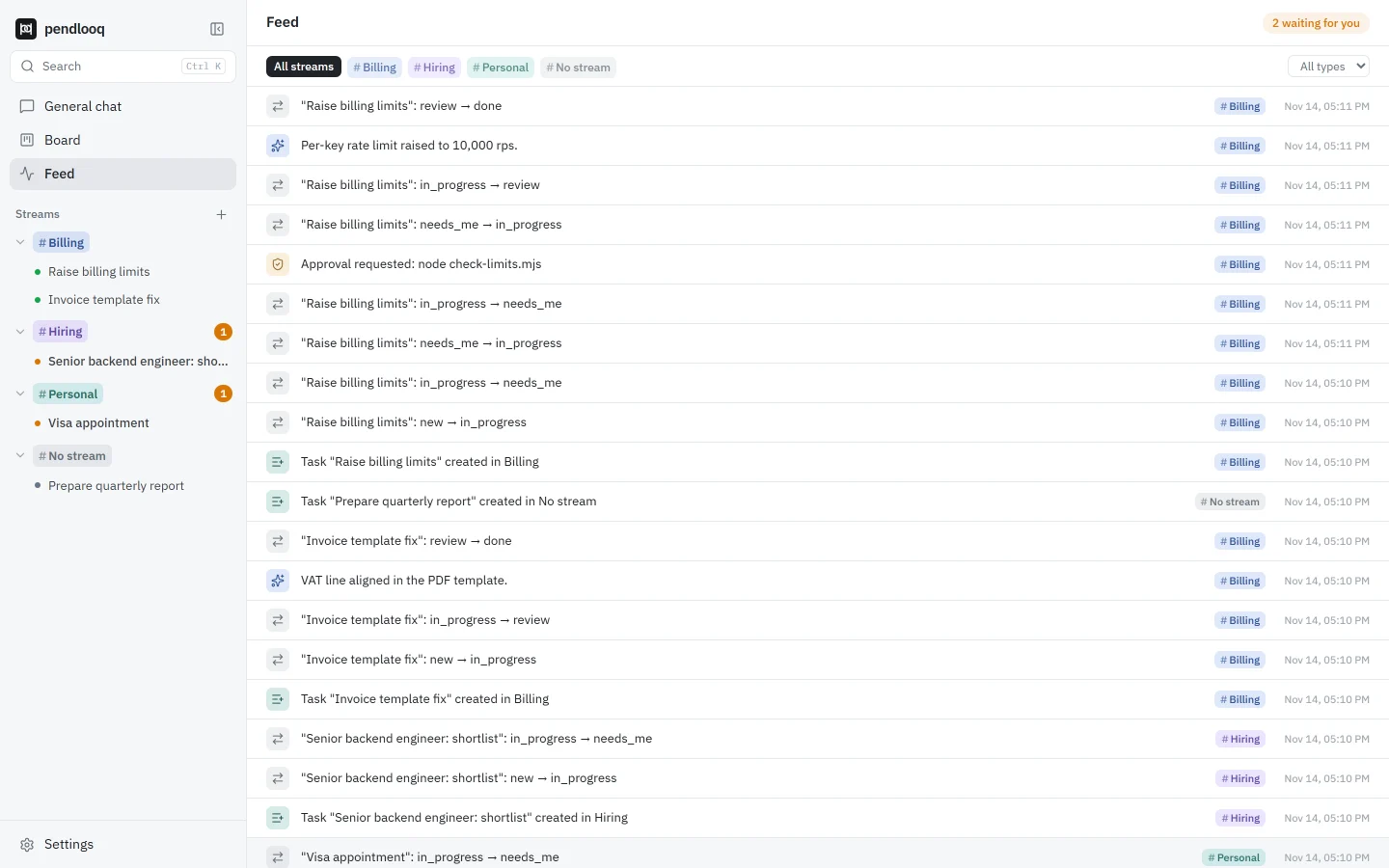
    Switch to the Feed with Alt+3 to see the day as a list: one line per action, with its stream and time. Filter by stream or by type, and click a line to open its task.

    The Feed view, newest first: “Raise billing limits” moved from review to done, the result line “Per-key rate limit raised to 10,000 rps.”, the approval request for node check-limits.mjs and earlier status changes, each tagged with its stream and time.The Feed view, newest first: “Raise billing limits” moved from review to done, the result line “Per-key rate limit raised to 10,000 rps.”, the approval request for node check-limits.mjs and earlier status changes, each tagged with its stream and time.
    One line per event, newest first.
  7. Step 7

    Later, the same topic finds the same task

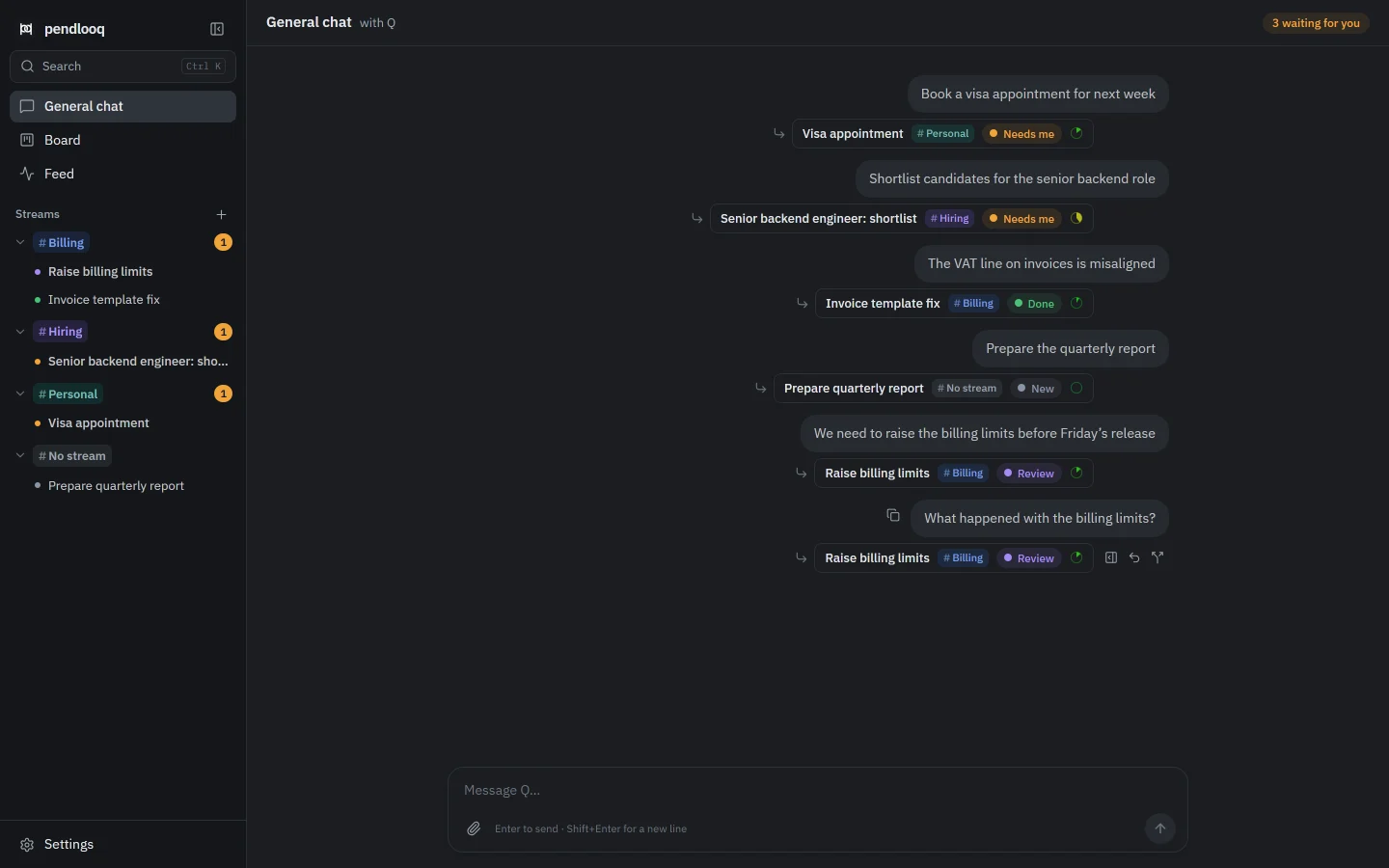
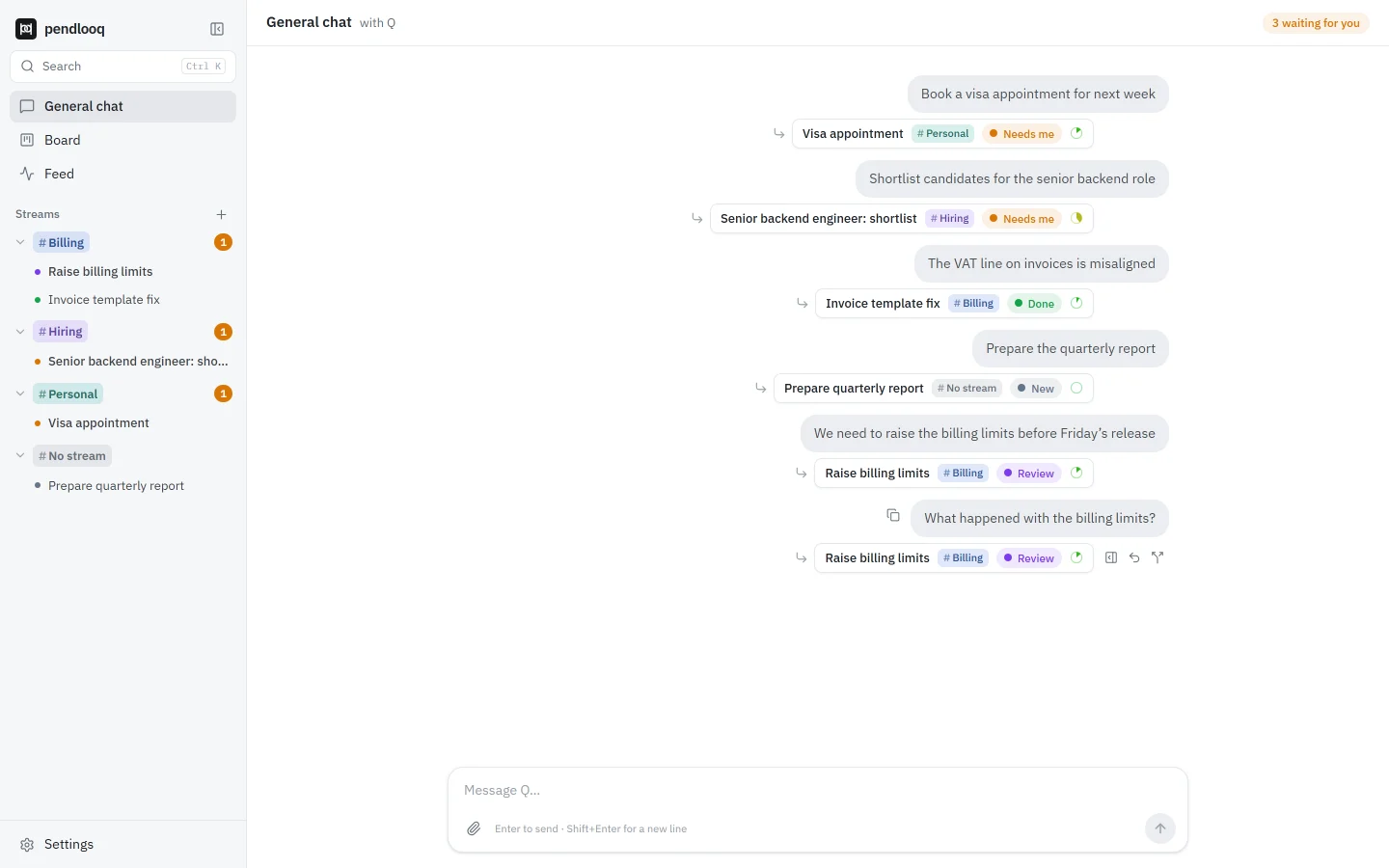
    A week later you write “What happened with the billing limits?” in the general chat. The router does not open a new task: it finds “Raise billing limits”, even though it was archived, restores it, and puts your message into its thread.

    The assistant answers with the whole history at hand. If you did mean something new, “New task instead” on the chip splits it off.

    In the demo the follow-up comes minutes later, after the task was archived by hand. By default the router looks at tasks active in the last 14 days; the window is configurable.

    Every message finds its task

    The general chat after a later question, “What happened with the billing limits?”. The chip under it points to the existing task Raise billing limits, not to a new one.The general chat after a later question, “What happened with the billing limits?”. The chip under it points to the existing task Raise billing limits, not to a new one.
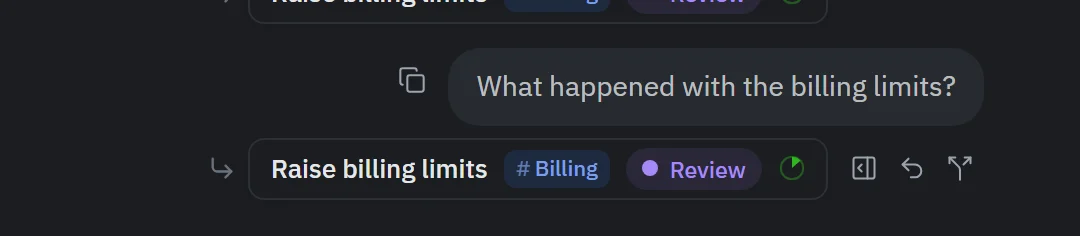
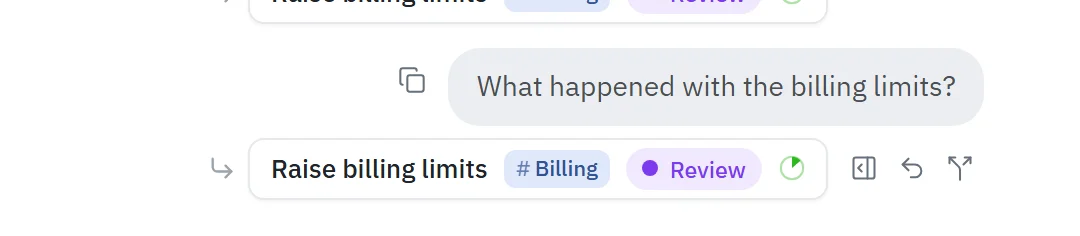
    Close-up: the follow-up question routed to the existing task Raise billing limits, now in Review, with the actions Open thread, Undo and New task instead.Close-up: the follow-up question routed to the existing task Raise billing limits, now in Review, with the actions Open thread, Undo and New task instead.
    The follow-up is routed to the existing task, with Undo and “New task instead”.
  8. Step 8

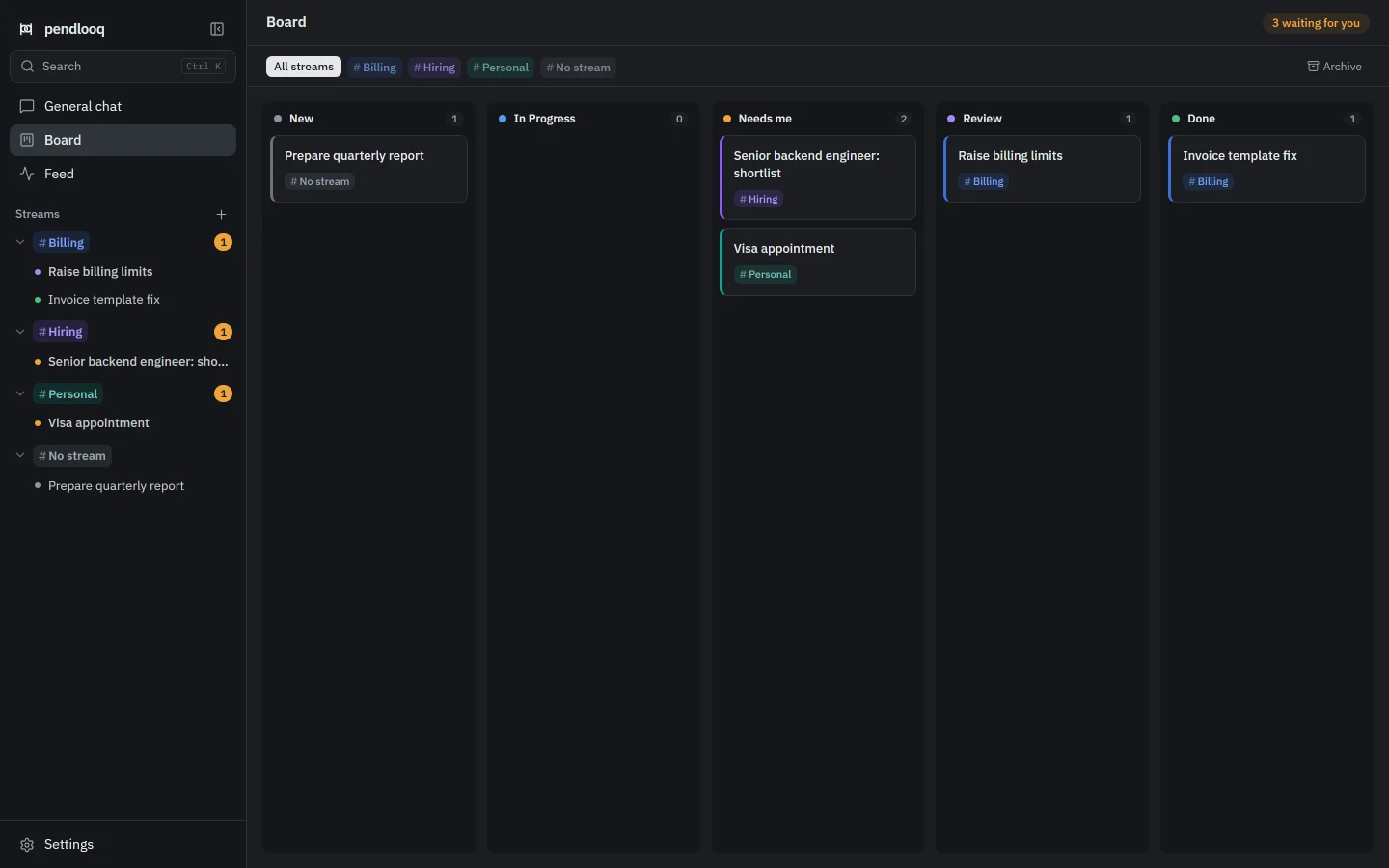
    The Board (Alt+2) shows every open task in columns: New, In Progress, Needs me, Review, Done, with a stream filter and a separate Archive view.

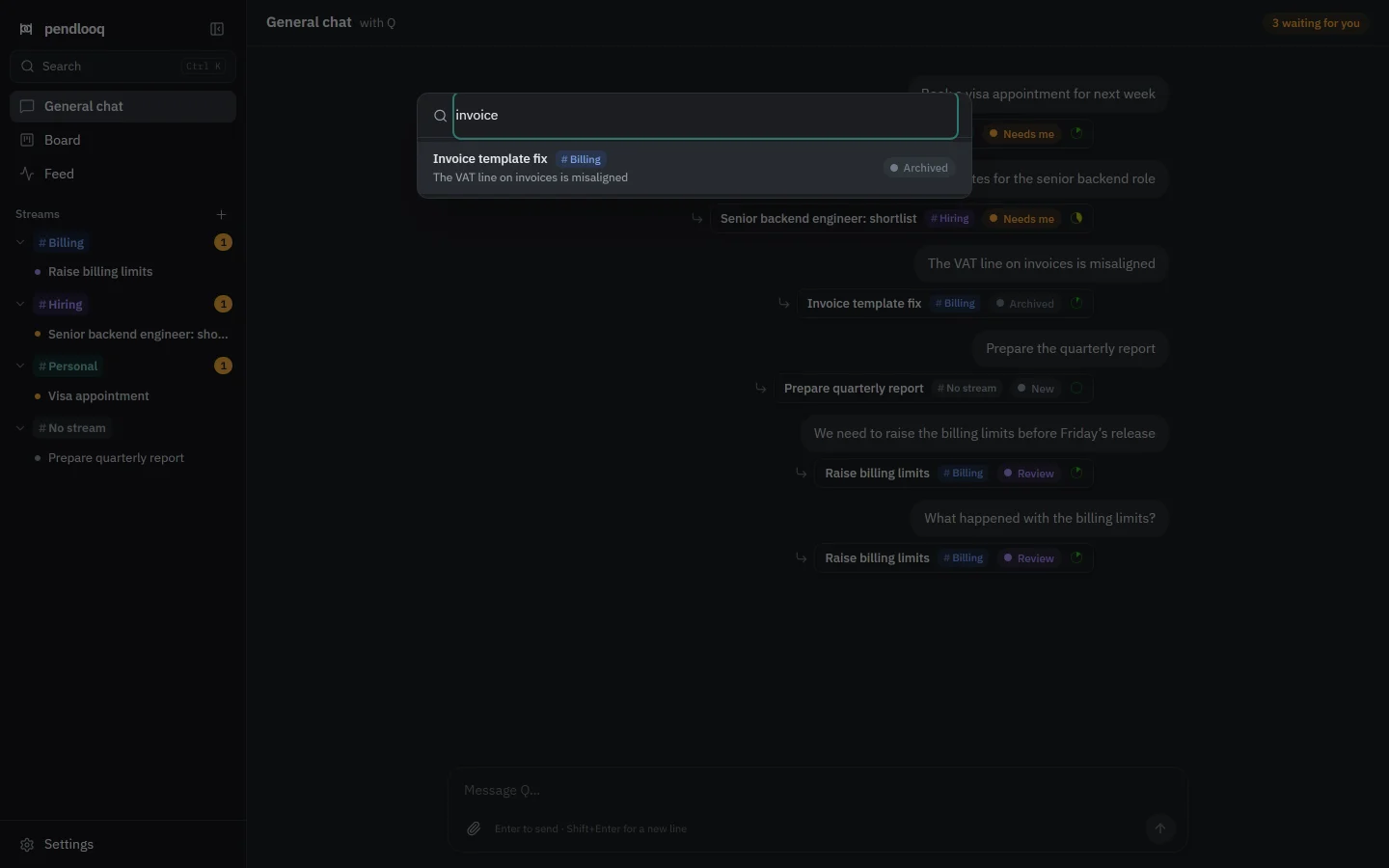
    Ctrl+K jumps to any stream or task and searches the whole message history, archived tasks included, with each task’s status in the results.

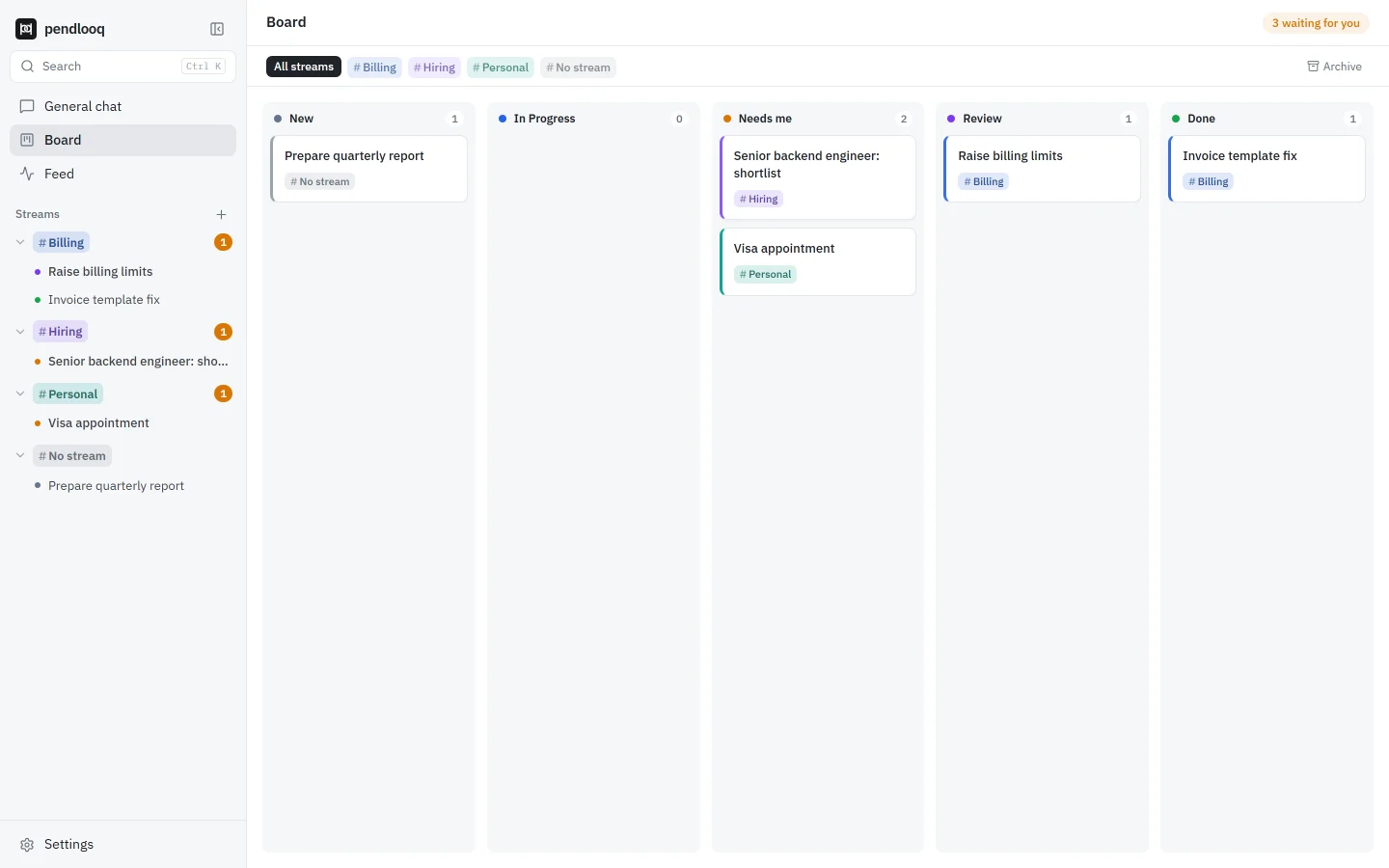
    The Board view with the columns New, In Progress, Needs me, Review and Done. Cards from the Billing, Hiring, Personal and No stream streams sit in their status columns; a stream filter and an Archive switch are on top.The Board view with the columns New, In Progress, Needs me, Review and Done. Cards from the Billing, Hiring, Personal and No stream streams sit in their status columns; a stream filter and an Archive switch are on top.
    The Board: every open task by status.
  9. Step 9

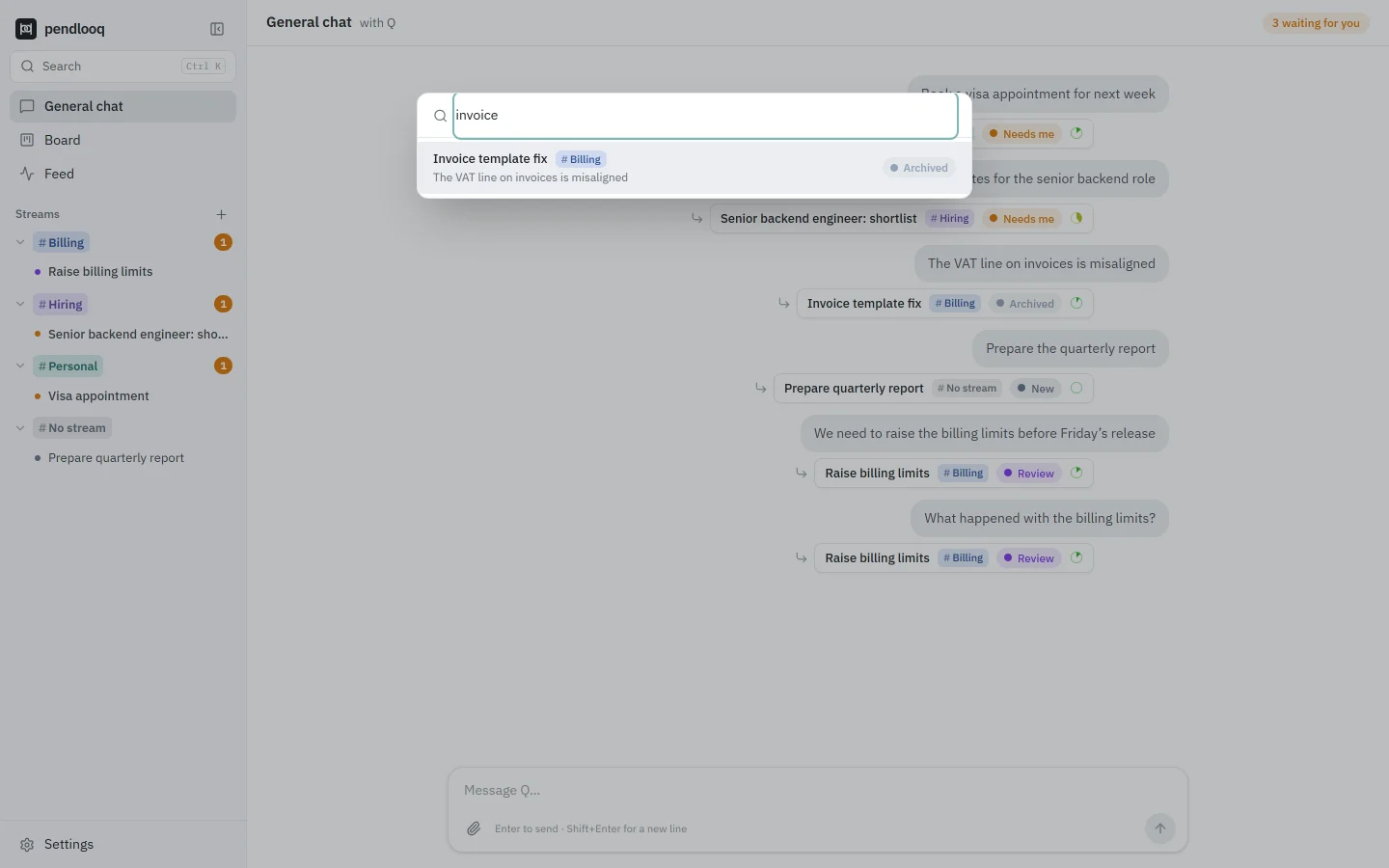
    Here Ctrl+K finds a task that was fixed and archived earlier, “Invoice template fix”, by a word from its first message.

    The Ctrl+K palette searching for “invoice”. It finds the task Invoice template fix in the Billing stream and shows its status, Archived.The Ctrl+K palette searching for “invoice”. It finds the task Invoice template fix in the Billing stream and shows its status, Archived.
    Ctrl+K finds archived tasks too, with their status.

Try it on your own work

The local app is free with your own model key. Packages ship with the first public release.